Introduction
Data visualization plays a crucial role in modern biological, agricultural, ecological, and biomedical research. Scatter plots are one of the most widely used visualization techniques because they display the relationship between two continuous variables. While traditional scatter plots provide valuable information, interactive scatter plots offer a much richer experience by allowing users to zoom, pan, inspect individual observations, and explore datasets dynamically.
In RStudio, the Plotly package makes it simple to convert ordinary scatter plots into interactive visualizations with only a few lines of code. Researchers can hover over data points to display additional information such as sample IDs, species names, measurement values, and other metadata.
In this tutorial, you will learn how to create an interactive scatter plot in RStudio using Plotly. We will import an Excel dataset, customize the graph, enable hover information, modify axes and plot appearance, and finally save the visualization as an interactive HTML file for sharing or publishing.
What is an Interactive Scatter Plot?
An interactive scatter plot is a graphical visualization that displays the relationship between two quantitative variables while allowing users to interact with the chart.
Unlike static scatter plots, interactive plots allow users to:
- Zoom into specific regions
- Pan across the graph
- Hover over observations
- View detailed information
- Export the graph
- Reset the view
These features improve data exploration and make interactive scatter plots particularly useful for large biological datasets.
Why Use Plotly in RStudio?
Explain:
- Easy to learn
- Highly interactive
- Professional appearance
- Supports HTML export
- Ideal for scientific publications
- Excellent for biological datasets
- Compatible with RStudio
Software Requirements
Create a small table.
| Software | Purpose |
|---|---|
| R | Statistical computing |
| RStudio | IDE |
| readxl | Import Excel files |
| plotly | Interactive visualization |
| htmlwidgets | Save HTML output |
Dataset Used
Introduce the dataset.
Example columns:
| Column | Description |
|---|---|
| Sample_ID | Sample identification |
| Species | Plant species |
| Plant_Height_cm | Plant height |
| Leaf_Area_cm2 | Leaf area |
| Chlorophyll_SPAD | Chlorophyll content |
Mention that the Excel dataset is imported using read_excel(file.choose()).
Step 1: Install the Required Packages
install.packages("readxl")
install.packages("plotly")
install.packages("htmlwidgets")
Explanation
Before creating an interactive scatter plot, you need to install the required R packages. Packages are collections of functions that extend R’s capabilities.
Line 1
install.packages("readxl")
Explanation
The readxl package is used to import Microsoft Excel files (.xlsx and .xls) into RStudio.
Without this package, R cannot directly read Excel datasets.
Why is it needed?
Suppose your biological dataset is stored in Excel. This package allows R to import it for analysis.
Example:
Plant measurements
Clinical observations
Agricultural experiments
Ecological surveys
Line 2
install.packages("plotly")
Explanation
This command installs the Plotly package.
Plotly is one of the most popular visualization packages in R because it creates interactive graphs.
Unlike ordinary scatter plots, Plotly allows users to:
- Zoom
- Pan
- Hover over points
- Download figures
- Explore data interactively
Line 3
install.packages("htmlwidgets")
Explanation
The htmlwidgets package saves interactive visualizations as HTML files.
Instead of a static image, the graph becomes a web page that can be opened in any browser.
Researchers can easily share these HTML files with students and collaborators.
Interpretation
These three packages form the foundation of the workflow:
- readxl imports Excel data.
- plotly creates the interactive scatter plot.
- htmlwidgets exports the plot as a standalone HTML file.
Step 2: Load the Packages
library(readxl)
library(plotly)
library(htmlwidgets)
Explanation
Installing a package is only required once, but it must be loaded every time you start a new R session.
Line 1
library(readxl)
Loads all functions from the readxl package, enabling Excel file import.
Line 2
library(plotly)
Loads the Plotly package so that interactive graphs can be created.
Line 3
library(htmlwidgets)
Loads functions required to save interactive plots as HTML files.
Interpretation
These library commands make the functions from each package available during the current R session.
Step 3: Import the Excel Dataset
bio_data <- read_excel(file.choose())
Explanation
This line imports your Excel dataset into R.
Breaking the code
bio_data
This is the object (data frame) where the imported dataset will be stored.
read_excel()
This function reads Excel files.
It supports:
- XLS
- XLSX
file.choose()
Instead of typing the file path manually, file.choose() opens a file browser.
The user simply selects the Excel file.
Example
Suppose your Excel file contains:
| Sample_ID | Species | Plant_Height_cm | Leaf_Area_cm2 |
|---|---|---|---|
| P1 | Rice | 45 | 160 |
| P2 | Rice | 52 | 180 |
After importing, all data are stored in bio_data.
Interpretation
This approach is convenient because it avoids hard-coding file paths, making the script portable across different computers.
Step 4: Check the Dataset
View(bio_data)
head(bio_data)
str(bio_data)
summary(bio_data)
Why inspect the data?
Always inspect the dataset before visualization to ensure it has been imported correctly.
Line 1
View(bio_data)
Opens the dataset in RStudio’s spreadsheet-style viewer.
You can scroll through rows and columns to verify the data.
Line 2
head(bio_data)
Displays the first six rows.
This provides a quick preview of the dataset.
Line 3
str(bio_data)
Displays the structure of the dataset, including:
- Number of observations
- Number of variables
- Variable names
- Data types (numeric, character, etc.)
Line 4
summary(bio_data)
Produces descriptive statistics.
For numeric variables, it shows:
- Minimum
- 1st Quartile
- Median
- Mean
- 3rd Quartile
- Maximum
Interpretation
These checks help identify missing values, incorrect data types, or import errors before creating the visualization
Step 5: Create the Interactive Scatter Plot
fig <- plot_ly(
Explanation
This command begins creating an interactive Plotly figure.
fig
Stores the graph as an object named fig.
plot_ly()
The main Plotly function used to create interactive visualizations.
Step 6: Specify the Dataset
data = bio_data,
Explanation
This tells Plotly to use the imported dataset bio_data as the source for plotting.
Step 7: Select the X-axis Variable
x = ~Plant_Height_cm,
Explanation
The Plant_Height_cm column is assigned to the horizontal (X) axis.
Each observation is positioned horizontally according to its plant height.
Step 8: Select the Y-axis Variable
y = ~Leaf_Area_cm2,
Explanation
The Leaf_Area_cm2 column is assigned to the vertical (Y) axis.
Each point’s vertical position represents the leaf area.
Step 9: Choose the Plot Type
type = "scatter",
Explanation
This specifies that the visualization will be a scatter plot.
Each observation is represented by a separate marker.
Step 10: Display Markers
mode = "markers",
Explanation
The mode argument determines how data are displayed.
Using "markers" means only points are shown, with no connecting lines.
Step 11: Customize Marker Appearance
marker = list(
size = 10,
color = "#66C2A5",
opacity = 0.80,
line = list(
color = "black",
width = 1
)
)
Explanation of each option
- size = 10: Sets the marker diameter to 10 pixels, making points easy to see.
- color = “#66C2A5”: Applies a teal-green color to all markers.
- opacity = 0.80: Makes markers slightly transparent (80% opacity), helping reveal overlapping points.
- line = list(…): Adds a black border around each marker for better visibility.
- color = “black”: Marker outline color.
- width = 1: Outline thickness of 1 pixel.
These settings improve the plot’s readability and appearance.
Step 12: Create Hover Information
text = ~paste0(...)
hoverinfo = "text"
Explanation
The paste0() function combines multiple variables into a formatted label displayed when the cursor hovers over a point.
The hover text includes:
- Sample ID
- Species
- Plant Height
- Leaf Area
- Chlorophyll SPAD
Setting hoverinfo = "text" ensures only this custom information is displayed.
Step 13: Customize the Plot Layout
The layout() function controls the overall appearance of the graph. It sets:
- Plot title
- X-axis title
- Y-axis title
- Axis fonts
- Grid lines
- Axis borders
- Background colors
- Hover label style
These options create a clean, publication-quality figure with clear labels and consistent formatting.
Step 14: Enable the Interactive Toolbar
config(
displayModeBar = TRUE,
scrollZoom = TRUE,
displaylogo = FALSE
)
Explanation
- displayModeBar = TRUE: Shows the Plotly toolbar with zoom, pan, and export tools.
- scrollZoom = TRUE: Enables mouse-wheel zooming.
- displaylogo = FALSE: Removes the Plotly logo from the toolbar for a cleaner appearance.
Step 15: Display the Plot
fig
Explanation
Typing the figure object displays the interactive scatter plot in the RStudio Viewer or web browser.
Step 16: Save the Interactive Plot
saveWidget(
fig,
"Interactive_Biological_ScatterPlot.html",
selfcontained = TRUE
)
Explanation
The saveWidget() function saves the interactive plot as a standalone HTML file.
- fig: The Plotly figure object.
- “Interactive_Biological_ScatterPlot.html”: The output file name.
- selfcontained = TRUE: Embeds all required resources into a single HTML file, making it easy to share without additional files.
Step 17: Open the HTML File
browseURL("Interactive_Biological_ScatterPlot.html")
Explanation
This command automatically opens the saved HTML file in your default web browser, allowing you to explore the interactive scatter plot outside RStudio.
Interpretation of the Scatter Plot
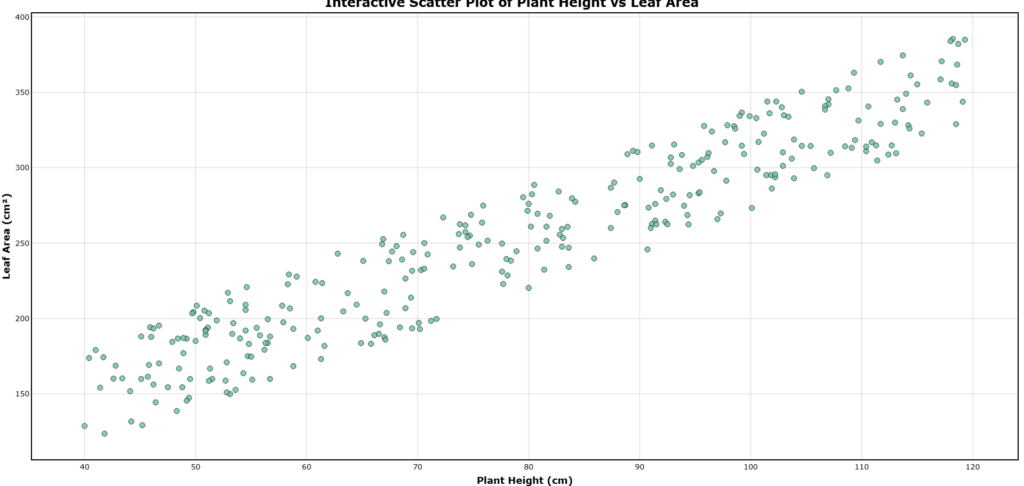
Explain:
- X-axis represents Plant Height (cm).
- Y-axis represents Leaf Area (cm²).
- Each point represents an individual plant sample.
- The upward trend indicates a positive relationship between plant height and leaf area.
- Hover labels provide additional information such as Sample ID, Species, and Chlorophyll SPAD values.
- The interactive features allow users to zoom into clusters and inspect individual observations, making exploratory data analysis more effective.
Advantages of Interactive Scatter Plots
- Easy to interpret
- Publication-quality visualization
- Interactive exploration
- Dynamic hover labels
- Suitable for large datasets
- HTML export
- Better presentations
- Supports biological and environmental research
Applications
- Plant Science
- Agriculture
- Ecology
- Forestry
- Environmental Science
- Genetics
- Biomedical Research
- Fisheries
- Soil Science
- Biostatistics
Common Errors and Solutions
| Error | Solution |
|---|---|
| Package not found | Install the package |
| File not selected | Choose the Excel file correctly |
| Column name mismatch | Verify Excel column names |
| Empty graph | Ensure the dataset contains valid numeric values |
| HTML not opening | Confirm the HTML file was saved successfully |
📥 Download Resources
Download Excel Dataset
Download Complete RStudio Script
Conclusion
Summarize that Plotly enables the creation of highly interactive scatter plots in RStudio with features such as zooming, panning, hover labels, and HTML export. Highlight that combining readxl, plotly, and htmlwidgets provides a complete workflow for importing Excel data, exploring relationships between variables, customizing visual appearance, and sharing interactive visualizations. Encourage readers to adapt the approach to their own biological or statistical datasets for deeper exploratory analysis.