Introduction
CSV (Comma-Separated Values) and text files are among the most common file formats used to store scientific, engineering, and research data. Laboratory instruments, statistical software, data loggers, sensors, and online databases often export datasets in CSV or TXT format. Before performing statistical analysis or creating publication-quality graphs, these files must be imported correctly into OriginPro.
OriginPro provides several methods for importing text-based data. For simple files, the Import Single ASCII option is sufficient, while more complex datasets with custom delimiters, multiple headers, metadata, or irregular formatting can be imported using the powerful Import Wizard.
What is CSV and Text File Import in OriginPro?
CSV and Text File Import is the process of reading data stored in plain text formats such as:
- CSV (.csv)
- TXT (.txt)
- DAT (.dat)
- ASC (.asc)
- TSV (.tsv)
and transferring the contents into an OriginPro workbook for analysis.
Once imported, the data can be used for:
- Scientific graphing
- Statistical analysis
- Curve fitting
- Peak analysis
- Signal processing
- Report generation
Why Import CSV Files into OriginPro?
CSV files are widely supported because they are lightweight and compatible with almost every scientific instrument and software.
Advantages
✔ Small file size
✔ Easy to exchange
✔ Compatible with Excel
✔ Supported by laboratory instruments
✔ Ideal for large datasets
Methods to Import CSV and Text Files
OriginPro provides two primary methods.
| Method | Best For |
|---|---|
| Import Single ASCII | Simple CSV/TXT files |
| Import Wizard | Complex or customized text files |
Method 1: Import Single ASCII
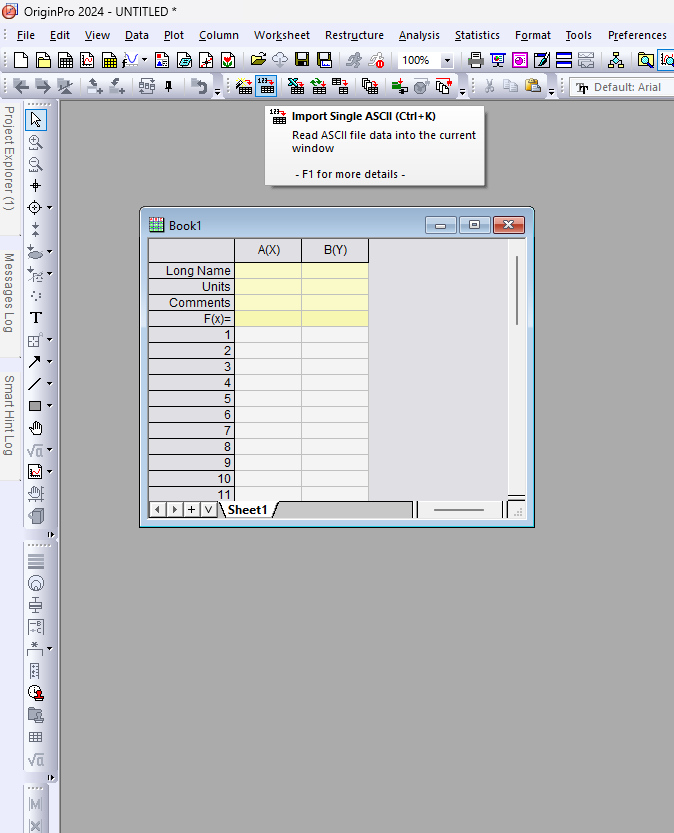
or
Click the Import Single ASCII toolbar icon.
Best Used For
- Standard CSV files
- Simple TXT files
- Files with regular delimiters
- Small datasets
This method imports data quickly with minimal configuration.
Method 2: Import Wizard
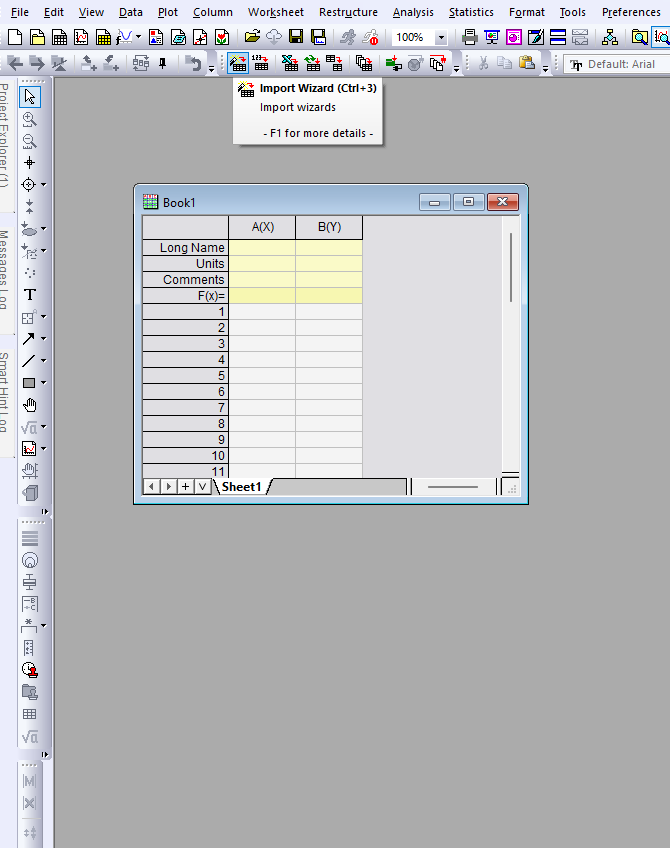
The Import Wizard provides complete control over how OriginPro reads and organizes your data.
Step-by-Step Guide to Import CSV Files
Step 1: Open OriginPro
Launch OriginPro.
A blank workbook named Book1 opens automatically.
Step 2: Open Import Wizard
Click
Import Wizard
or press
Ctrl + 3
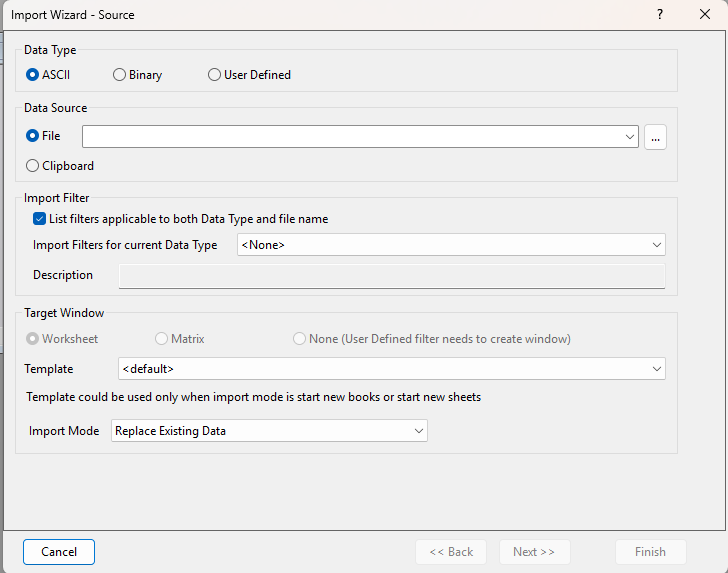
The Import Wizard – Source window appears.
Step 3: Choose Data Type
The Source dialog allows selecting:
- ASCII
- Binary
- User Defined
For CSV files choose
ASCII
Step 4: Select Data Source
Click
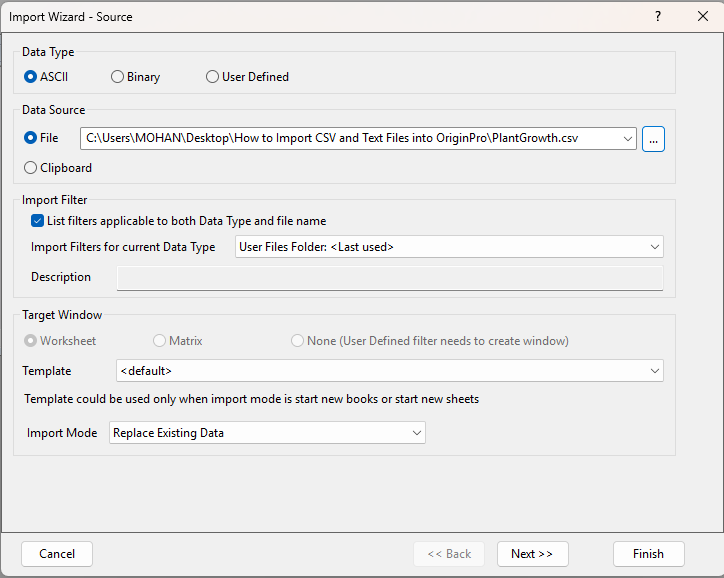
Browse (...)
Select
PlantGrowth.csv
or your desired CSV file.
The selected file path appears inside the File box.
Step 5: Choose Import Mode
Available options include
| Import Mode | Description |
|---|---|
| Replace Existing Data | Overwrites worksheet |
| Start New Sheet | Creates another worksheet |
| Start New Book | Creates another workbook |
For beginners,
Replace Existing Data
is usually sufficient.
Understanding the Header Lines Window
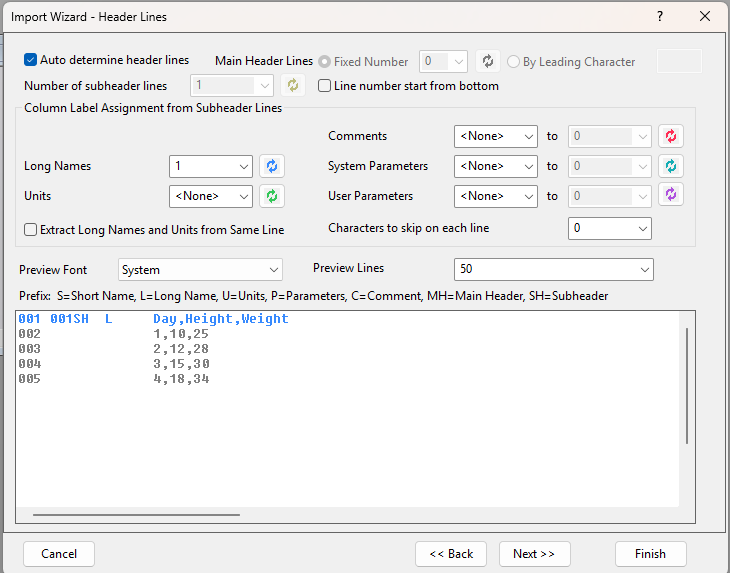
The next screenshot displays the Header Lines page.
OriginPro automatically detects
- Main Header
- Long Names
- Units
- Comments
Main Header Lines
If the first row contains
Day,Height,Weight
OriginPro assigns these values as column names.
Long Names
The setting
Long Names = 1
means the first line becomes the Long Name row.
Example
| CSV File |
|---|
| Day |
| Height |
| Weight |
becomes
| Long Name |
|---|
| Day |
| Height |
| Weight |
Units
If your file includes units
Day,Height(cm),Weight(g)
OriginPro can automatically extract
- cm
- g
into the Units row.
Variable Extraction
The next Import Wizard page allows users to extract variables.
Possible options include
- File name
- Header values
- User-defined parameters
This is useful when importing hundreds of experimental files.
File Name Options
The next page controls worksheet naming.
Options include
✔ Rename worksheet
✔ Rename workbook
✔ Append filename to workbook comments
This makes large projects easier to organize.
Example
Workbook

PlantGrowth.csv
instead of
Book1
Data Columns Window
One of the most important Import Wizard pages is Data Columns.
Here you define how OriginPro separates data.
Supported delimiters include
- Comma
- Tab
- Space
- Semicolon
- Custom delimiter
Example
CSV
Day,Height,Weight
1,10,25
2,12,28
Delimiter
✔ Comma
OriginPro separates the values correctly into columns.
Column Designations
You may assign
- X
- Y
- Z
- Error
to each column.
Example
| Column | Designation |
|---|---|
| Day | X |
| Height | Y |
| Weight | Y |
Data Selection Window
The final Import Wizard page allows partial import.
Options include
- Import selected rows
- Import selected columns
- Skip rows
- Skip columns
Example
Import only
Rows
10–500
instead of the entire file.
This is useful for very large datasets.
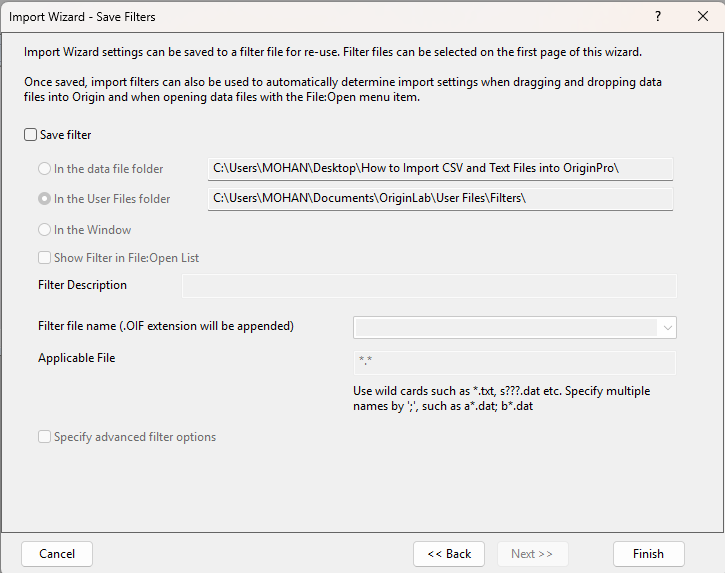
Save Filter Window
Import Wizard – Save Filters
OriginPro allows saving all import settings.
Benefits include
✔ Reuse import settings
✔ Faster imports
✔ Batch processing
✔ Consistent formatting
Simply enable
Save Filter
and click
Finish
The filter can be reused for future CSV files.
Example: Importing Plant Growth Data
Suppose you have the following CSV file.
| Day | Height | Weight |
|---|---|---|
| 1 | 10 | 25 |
| 2 | 12 | 28 |
| 3 | 15 | 30 |
| 4 | 18 | 34 |
Saved as
PlantGrowth.csv
Workflow
Step 1
Open Import Wizard.
Step 2
Browse
PlantGrowth.csv
Step 3
Choose
ASCII
Step 4
Select
Comma Delimiter
Step 5
Verify Header Lines
Step 6
Assign
Day → X
Height → Y
Weight → Y
Step 7
Click
Finish
The dataset appears inside OriginPro and is ready for graphing and analysis.
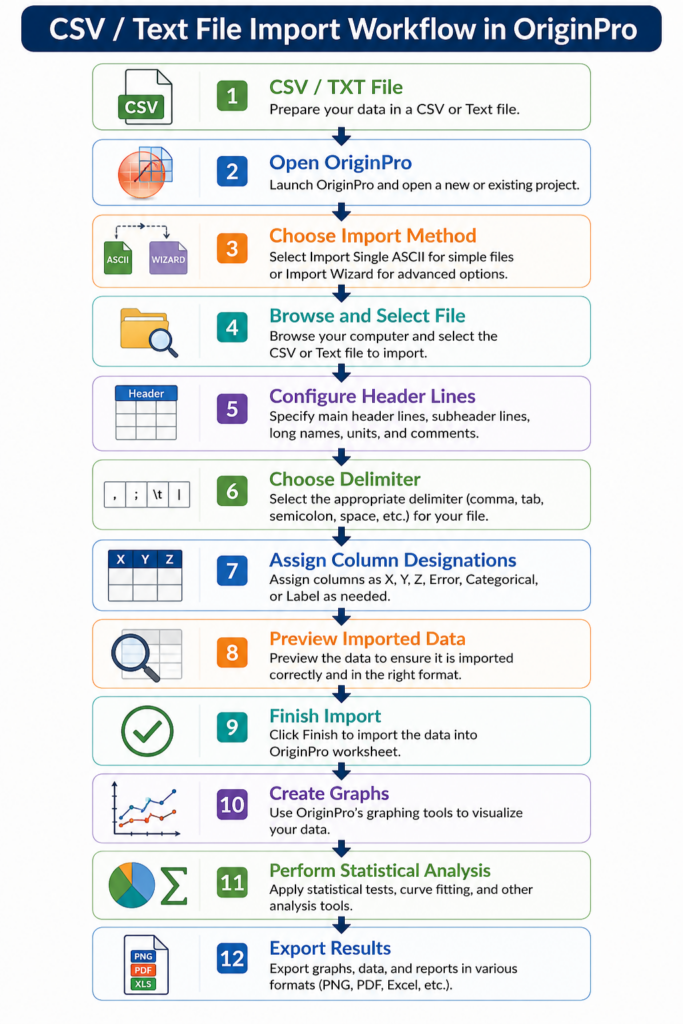
CSV/Text File Import Workflow
Common Import Problems
| Problem | Solution |
|---|---|
| Wrong delimiter | Select correct separator |
| Missing headers | Configure Header Lines |
| Blank columns | Check delimiter |
| Mixed text and numbers | Choose proper data type |
| Incorrect worksheet name | Use File Name Options |
| Repeated import settings | Save Import Filter |
Best Practices
Use Proper Headers
Always include meaningful column names.
Example
✔ Temperature
✔ pH
✔ Biomass
Avoid Empty Rows
Blank rows may interrupt automatic detection.
Save Import Filters
For recurring experiments, saved filters reduce repetitive configuration.
Verify Imported Data
Always compare the imported worksheet with the original CSV file.
Assign Correct Column Types
Setting X and Y columns correctly simplifies graph creation.
Applications
CSV and Text File import is widely used in
Biological Sciences
- Plant growth studies
- Gene expression analysis
Environmental Science
- Weather monitoring
- Water quality analysis
Chemistry
- Instrument-generated data
Engineering
- Sensor measurements
Medical Research
- Clinical trial datasets
CSV Import vs Import Wizard
| Feature | Import Single ASCII | Import Wizard |
|---|---|---|
| Speed | Fast | Moderate |
| Easy to Use | Excellent | Moderate |
| Header Detection | Basic | Advanced |
| Multiple Delimiters | Limited | Yes |
| Variable Extraction | No | Yes |
| Save Import Filter | No | Yes |
| Best For | Simple files | Complex datasets |
Conclusion
Importing CSV and text files into OriginPro is an essential skill for anyone working with scientific or experimental data. OriginPro offers two efficient methods: Import Single ASCII for quick imports of standard CSV or TXT files and the Import Wizard for advanced control over headers, delimiters, column designations, variable extraction, and reusable import filters. By understanding each step of the import process, users can ensure accurate data organization before performing graphing, statistical analysis, curve fitting, and report generation.
Mastering the CSV and text file import workflow not only improves efficiency but also reduces data formatting errors, making OriginPro a powerful platform for researchers, students, engineers, and scientists who rely on high-quality data analysis and visualization.